
How to Run a Tech Check Before a Remote Deposition
Most delays in a remote deposition have nothing to do with the law. The witness's camera is blocked by a privacy setting. The office network loads the meeting page but quietly stops the video. A headset is plugged in, but the sound comes out of the laptop speakers. Twenty minutes later, everyone is still asking "can you hear me now?" and the court reporter has nothing to take down.
Nearly all of these problems can be found the day before, in about two minutes, on the witness's own device. That is what a tech check is for. This guide covers what to test, how the device test built into every LiveLitigation invitation does it, and what to do when the answer is "not ready."
For coaching the witness on testimony, demeanor and the room itself, see our companion article on how to prepare your witness for a remote deposition. This one is about the technology.
What Usually Goes Wrong on Deposition Day
The same handful of problems cause most remote deposition delays:
- An outdated browser, or one the platform does not support.
- A corporate, hospital or hotel network that blocks live video, often without any error message.
- Camera or microphone permission that was never granted, or was denied by accident.
- A microphone muted by a switch on the headset or by the computer's sound settings.
- Sound going to the wrong speakers or headset.
- A slow connection that makes a large exhibit take a minute to appear.
- Screen sharing blocked by the computer's privacy settings, discovered the moment someone needs it.
A quick "click the meeting link and wave" rehearsal catches only some of these. It does not tell you whether the witness's network will carry live video for hours, or whether a long scanned exhibit will open quickly on the witness's end.
Test on the Same Device, Browser and Network
The most important rule is simple: test exactly what the witness will use on the day. The same computer, tablet or phone. The same browser. The same room and the same network, whether that is home Wi-Fi, the office or a hotel.
This matters more than it sounds. Browsers remember camera and microphone permission separately for each website, and LiveLitigation remembers the camera, microphone and speakers a person picks in that browser. A test on a different laptop, or in a different browser, proves very little about the one the witness will actually use.
That is why the LiveLitigation device test runs on the same web address as the deposition room itself. The permission granted during the test, and the devices picked there, carry straight into the deposition.
The Test Your Device Link in Every Invitation
Every LiveLitigation deposition invitation includes a Test Your Device Before the Event link, near the bottom of the email. It opens a self-guided test for that room, on the same web address the witness will use to join. The witness does not need an account, a password or a download.
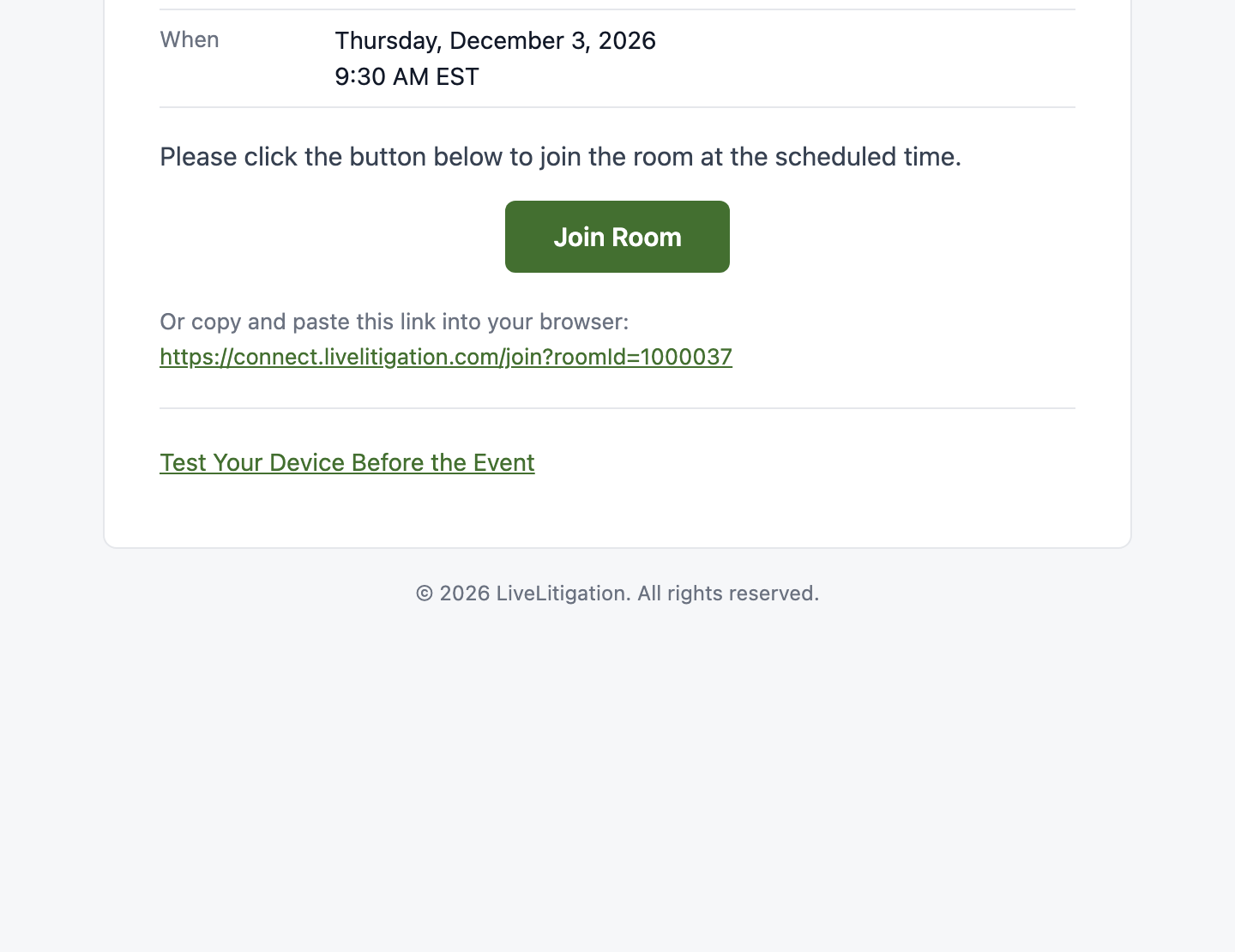
Ask the witness to open the link in their own copy of the invitation as soon as it arrives. The test asks for their name (optional), says plainly that no video or audio from the test is kept, and takes about two minutes.
What the Device Test Checks
The test walks through each check in order, and tests each one the way the deposition will use it.
Browser and network.
The first screen checks the browser version, the device clock, whether our servers can be reached, and whether a live connection can be opened and held. A blocked live connection is the classic firewall problem, and the test finds it before anyone is on the record.
Camera and microphone permission.
The browser asks for permission, and the test tells the witness to choose Allow and, if the browser offers, to remember the choice, so they are not asked again when they join.
Camera, microphone and speakers.
The witness sees their camera, watches the microphone level move as they speak, and plays a test sound. The test also notices a microphone muted by a switch on the device or by the computer's sound settings, and says so.
Video effects.
The test checks whether the computer can run a background blur smoothly. Whether a witness should use one is a separate question, covered below.
Through our server.
This is the check a camera preview cannot do. The witness's camera and microphone are sent to our server and back, and played the same way they will see and hear everyone else in the deposition. If live video and audio make the round trip on this network, they will work on the day.
Sample document.
A large scanned document, about 10 MB, opens in the same viewer used for exhibits. The witness confirms they can read the page, and the test measures how quickly it loaded. If exhibits will be slow for this witness, you find out now, not in the middle of questioning.
Screen sharing.
On a computer, the witness can check that the computer allows screen sharing. What they pick stays on their device and nobody else sees it. Phones and tablets skip this step.
Reading the Result
The test ends with one of three answers:
- Ready: everything worked on this device. Use it on the day.
- Ready, with notes: the witness can join from this device, but something is worth fixing first.
- Not ready: something needs fixing before the deposition. The items to fix are marked, and Run again starts a fresh test.
When the problem is the network, the result includes a note For your IT team, with a Copy for IT button. It lists exactly which outbound connections to allow, so a witness at a company, hospital or government office can forward it to their IT department instead of trying to describe the problem. No inbound firewall rules are needed.
Each saved result also has a reference number. If the witness needs help, they give that number to support, and support can see what the test found without asking the witness to describe it.
On the Day: The Camera and Microphone Check
The device test is the rehearsal. On deposition day, LiveLitigation runs a shorter check every time someone joins.
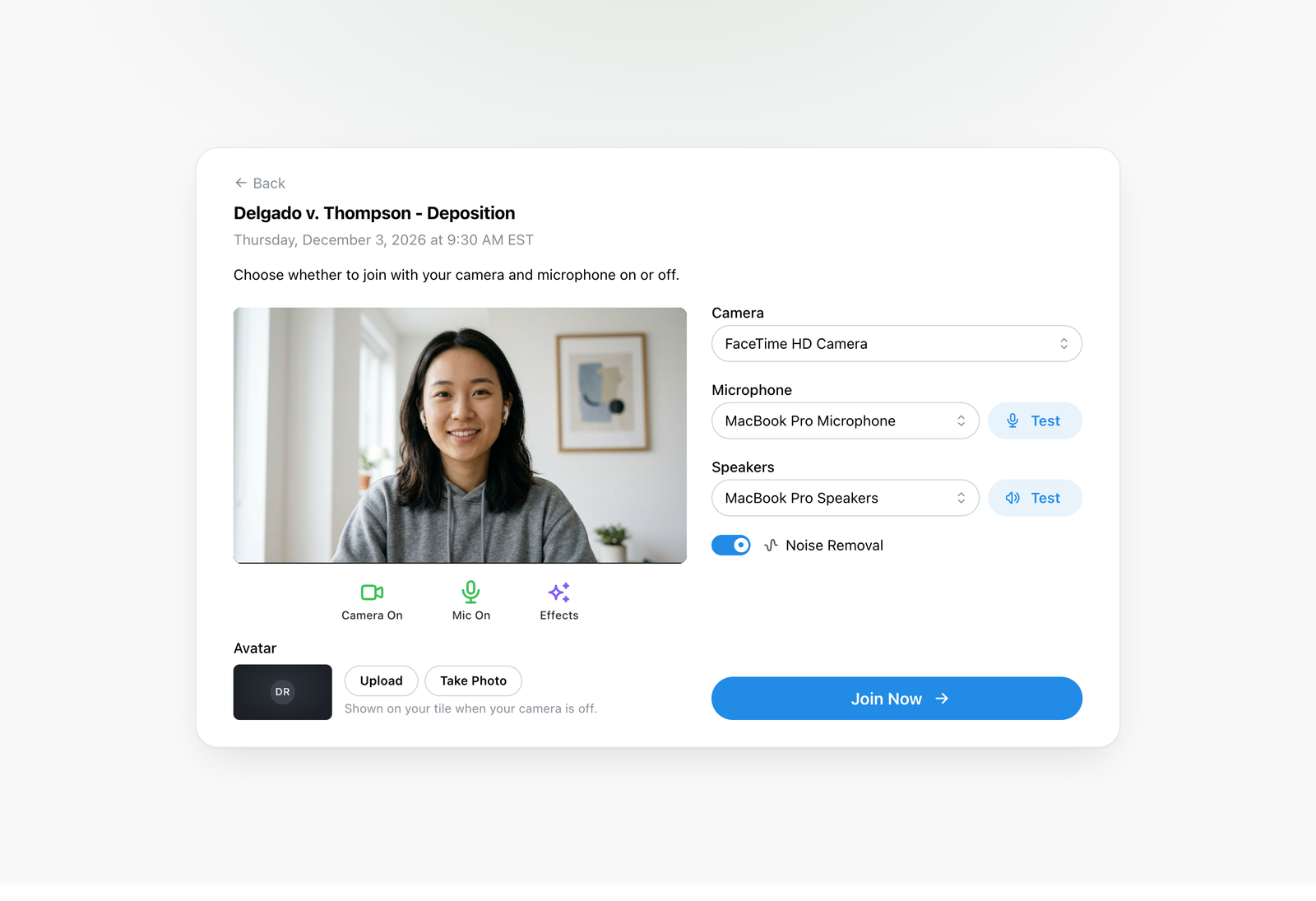
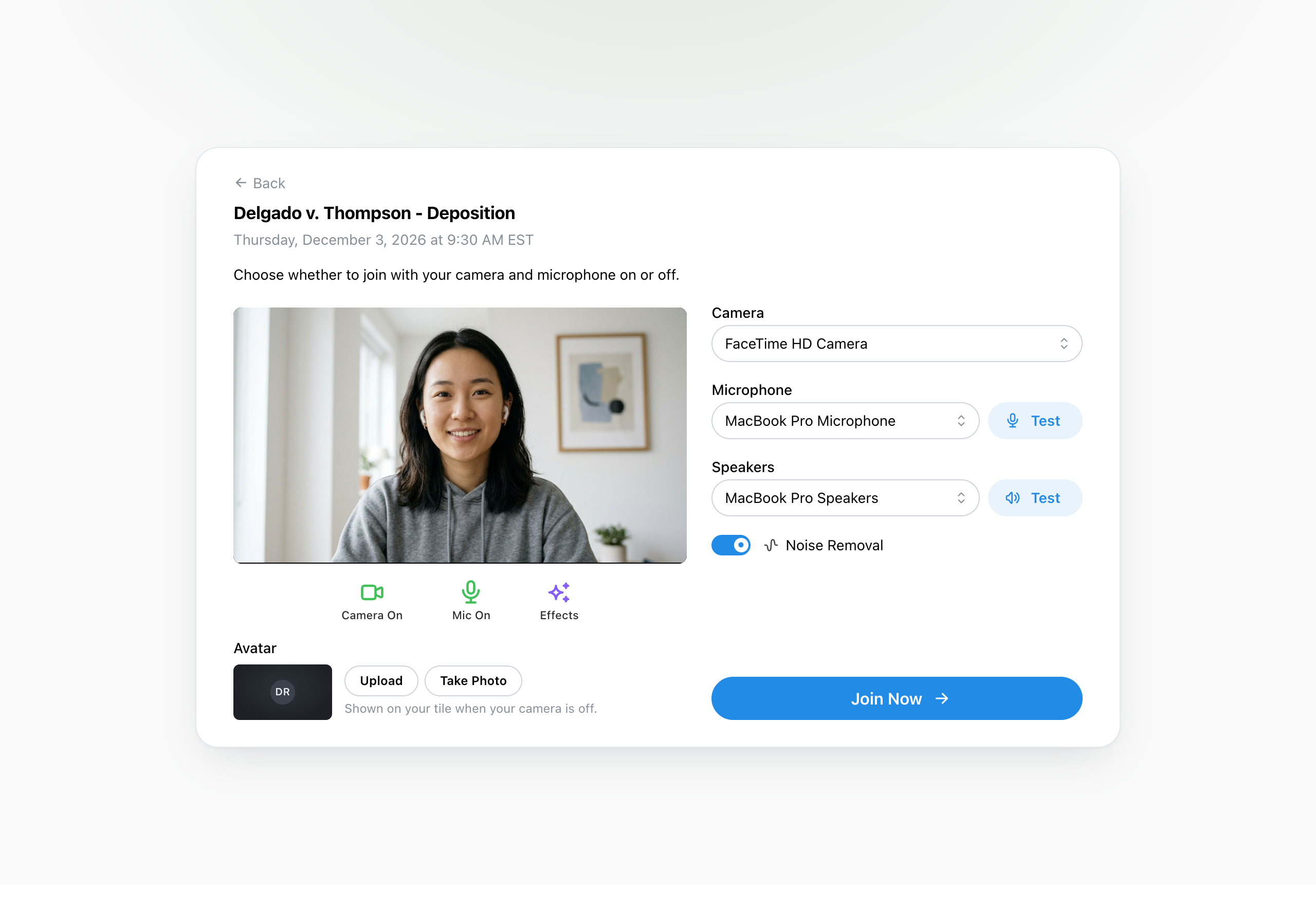
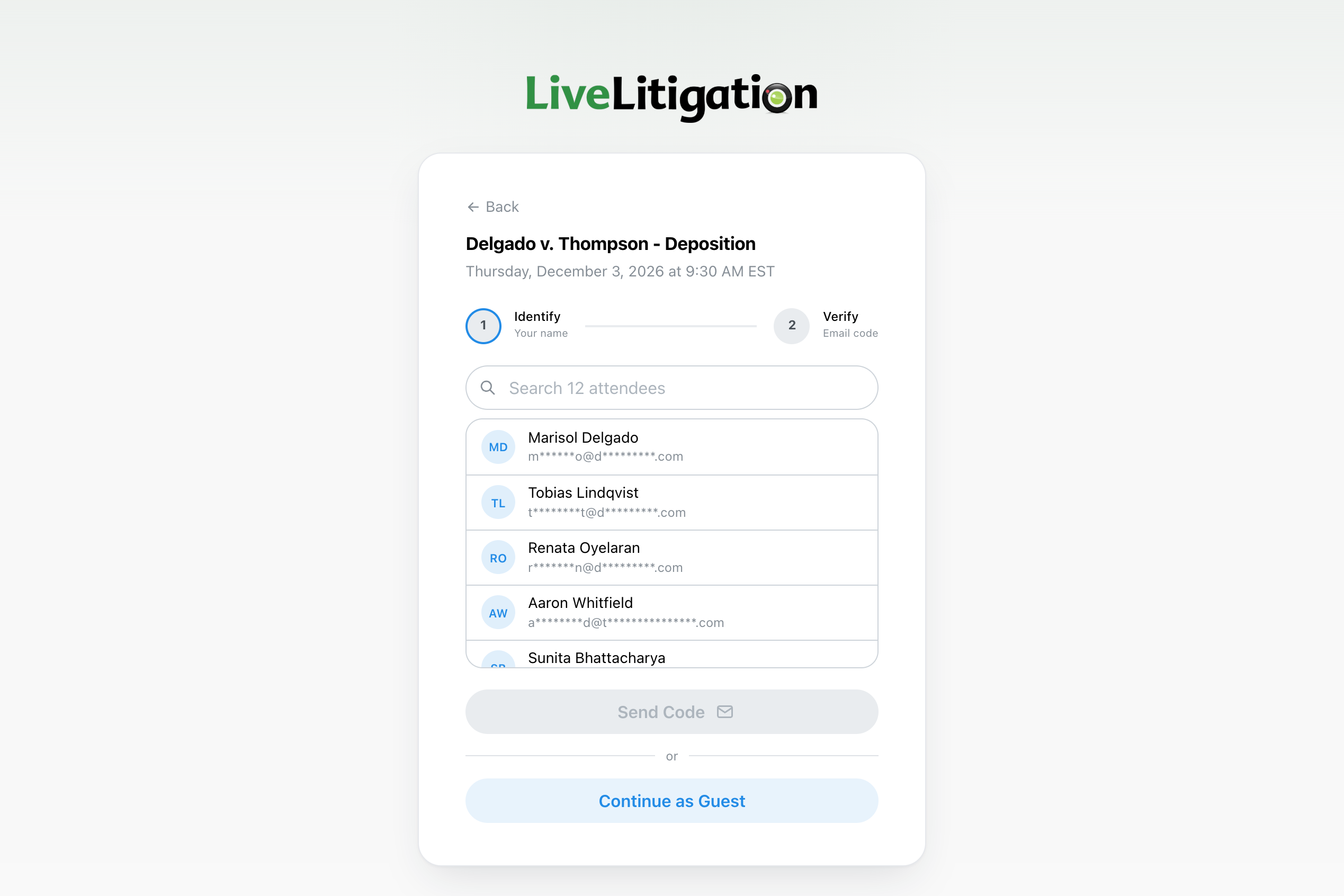
After the witness finds their name on the attendee list (or continues as a guest, where the host allows it), they see the camera and microphone check before entering the room. It shows their camera, lets them pick the camera, microphone and speakers with a Test button for the microphone and speakers, and offers Effects and an avatar for when their camera is off. Join Now takes them in.
Two settings on that screen are worth knowing about:
- Noise Removal is on by default. It filters background noise such as typing, air conditioning and traffic out of the microphone before it reaches the room, so the court reporter hears the witness rather than the room around them. It can be switched off on the same screen, or later from the microphone menu.
- In Speech-to-Text rooms, Your Spoken Language lets each person pick the language they speak, so their words are transcribed in that language.
For a full walkthrough of joining, see the step-by-step guide to attending a deposition.
A Word on Backgrounds and Blur
LiveLitigation offers background blur, virtual backgrounds and automatic framing under Effects. They are useful for attorneys and observers joining from a home office.
For witnesses, agree on it first. Many attorneys expect to see a witness's real surroundings, partly to be confident that nobody else is in the room and no notes are in view. A blurred or replaced background can draw an objection, or a request on the record to turn it off. The simplest approach is to settle it with opposing counsel before the deposition and tell the witness what was agreed. When in doubt, a plain wall behind an unfiltered camera never causes a problem. Our remote deposition etiquette guidecovers how attorneys should appear on camera.
A Remote Deposition Tech Check Timeline
When the invitation goes out
- Ask the witness to open Test Your Device Before the Event from their invitation, on the device, browser and network they will use.
- Ask them to tell you the result, and the reference number if anything was flagged.
Two or three days before
- If the result was Not ready, have the witness send the For your IT team note to their IT department, or move them to a different network or device.
- Run the test again after any change. A new laptop or a new location means a new test.
- Upload your exhibits to the room ahead of time. Our guide to exhibits in a remote deposition walks through it.
On the day
- Ask the witness to join 15 minutes early, from the same place they ran the test.
- Leave Noise Removal on, and confirm the camera, microphone and speakers on the camera and microphone check.
- Keep a phone nearby in case audio needs a backup.
Frequently Asked Questions
Does the witness need to install anything?
No. LiveLitigation runs in a current version of Chrome, Edge, Firefox or Safari. The test, like the deposition, opens from a link.
Can a witness test on a phone or tablet?
Yes. The test runs on a computer, tablet or phone, and phones and tablets skip the screen sharing step. If the witness will join on a phone, they should run the test on that phone.
Is any video or audio kept from the test?
No. The test keeps no video or audio. It saves the measurements and the result, so support can help if something needs fixing.
How long does the test take?
About two minutes.
What if the test says Not ready?
Fix the items it marks, then choose Run again. If the problem is the network, the For your IT team note lists exactly what the witness's IT department needs to allow.
Can attorneys and court reporters use the test too?
Yes. Anyone invited to the room can run it from their own invitation. It is worth asking every participant who has not joined a LiveLitigation deposition before.
A two minute test the day before costs far less than twenty minutes of troubleshooting on the record. LiveLitigation puts that test in every invitation, so all you have to do is ask the witness to click it. For the bigger picture, read our complete guide to remote depositions, see the online deposition platform, or request a demo.