
For witnesses, counsel, and anyone else invited: how to join, what the buttons do, and what to do if something goes wrong.
You have been invited to a deposition, hearing, or arbitration held in eSuite. There is nothing to install and no account to create. You need the email invitation, a computer or tablet with a camera, and about two minutes.
Everything you need is below. If you only read one part, read Before You Join.
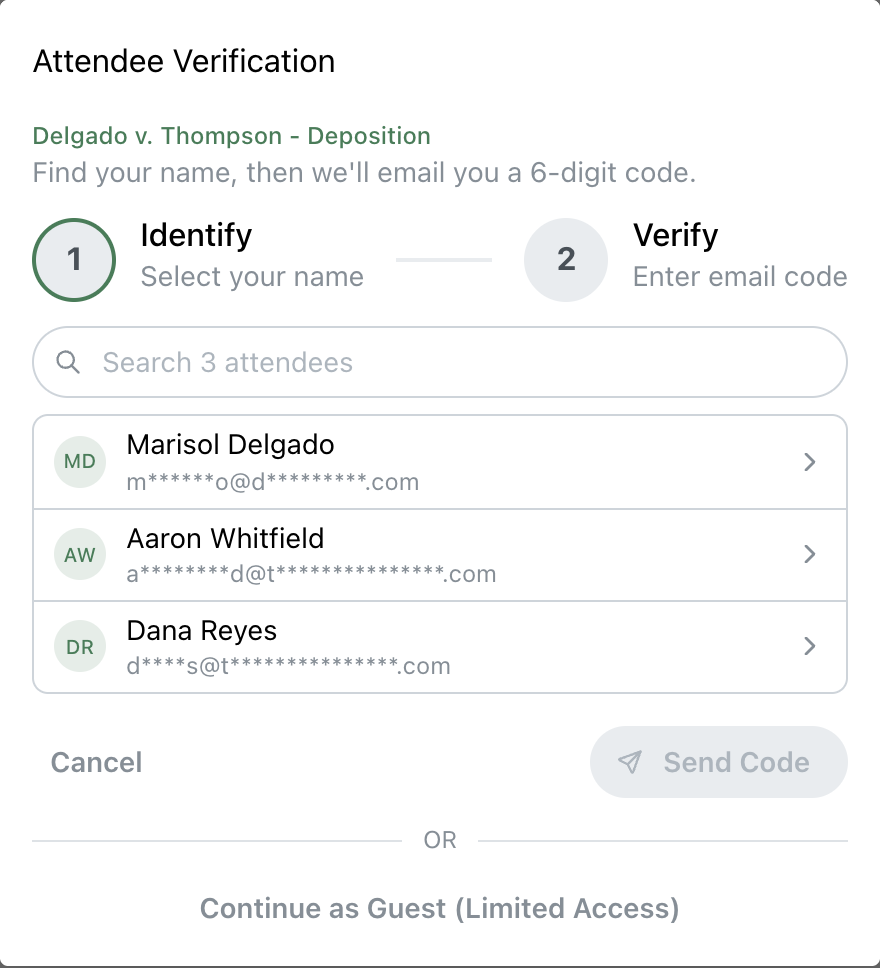
Click the link in your invitation. You will see Attendee Verification.
That is the whole check. It confirms you are the person who was invited, and it is why your name appears correctly on the record.
TIP
Almost everyone goes straight into the room from here. If you are a host for this deposition, you get a choice instead: Continue as Host, or Join as Videographer to open the clean recording feed on this device. Choose Continue as Host unless you are deliberately setting up a second device to record from.
NO CODE ARRIVED?
Give it a minute, then check your spam or junk folder. You can click Resend code. If you chose a text, you can also click Back and choose Email Code instead. If it still does not arrive, use Continue as Guest at the bottom of the page and tell the host once you are in. They can restore your access from inside the room.
CANNOT FIND YOUR NAME?
Check the spelling, and try just your surname. If you still do not appear, you were invited under a different spelling or a different address. Use Continue as Guest if the room offers it, otherwise ask the host to add you. Either way the host can put it right once you are in.
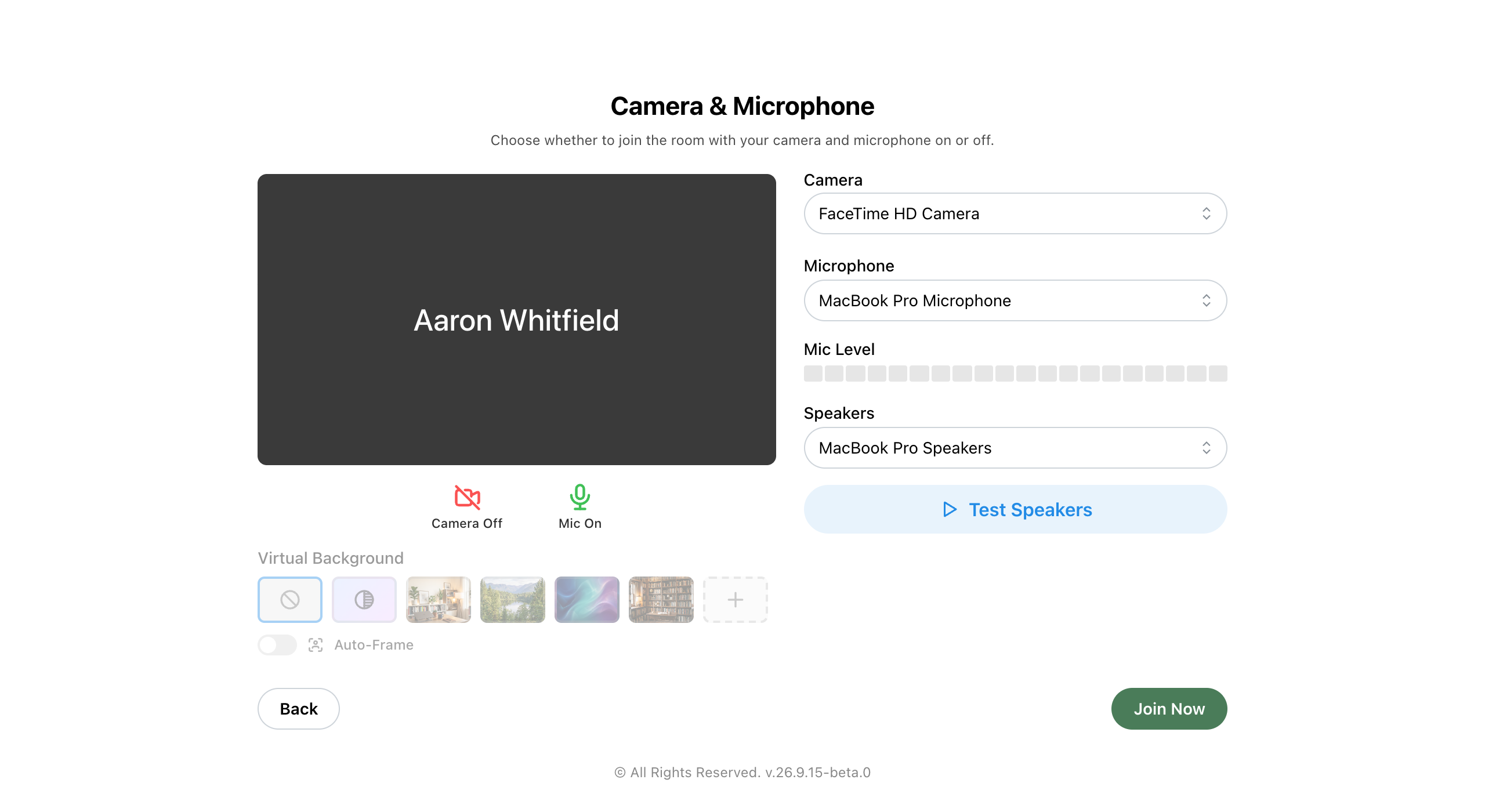
Next comes a screen headed Camera & Microphone. Your browser will ask for permission to use them. Click Allow. Nothing works if you dismiss it.
On this screen you can:
When you are happy, click Join Now.
TIP
Say a few words out loud and watch Mic Level move before you join. If it does not move, pick a different microphone from the list. This is the single most common thing that goes wrong, and it takes five seconds to rule out here.
THE BROWSER NEVER ASKED, OR YOU CLICKED THE WRONG THING?
Look for a small camera icon in your browser’s address bar, click it, and set camera and microphone to Allow. Then reload the page. On a Mac you may also need to allow your browser in System Settings, Privacy & Security.
Two controls matter. Mic On / Mic Off mutes and unmutes you, and Camera On / Camera Off turns your video on and off. Keep yourself muted when you are not speaking.
Share Screen shows a document or your screen to everyone, if your role allows it. Witnesses cannot share.
Exhibits and the live transcript, where the proceeding uses them, open from the room header or from Menu. The attendee list and the chat sit on the right. Close either one with the X in its corner for more room, and it becomes a tile in the room header showing the attendee count or any unread messages. Click the tile, or choose it from Menu, to bring it back.
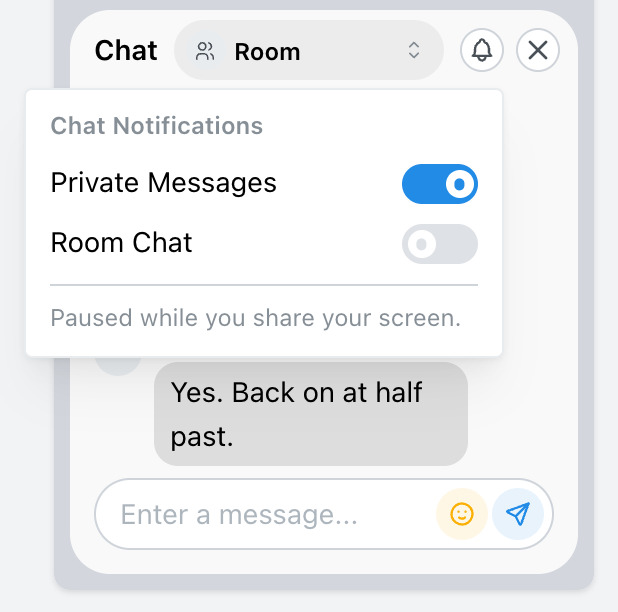
When a chat message arrives that you are not looking at, a notification pops up in the bottom-right corner for a few seconds. Click it to open that conversation. The bell beside the Chat panel's X chooses which chats notify you: Private Messages and Team Chat are on to start with, and Room Chat is off. Notifications pause while you share your screen, and your choice is remembered on that device.
To change how the video looks, open the menu on any video tile (the three dots). From there you can pin that person to the main view, switch the layout between Speaker, Grid and Speaker only, or turn on Hide disabled videos and Hide self view for this session.
The room treats the witness differently on purpose. You will notice some of this, and none of it is a fault:
If you are unsure whether something is missing or simply switched off, ask the host. They can change it in seconds without stopping the proceeding.
Almost everything is fixed by one of these, in this order.
If none of that works, tell the host in the chat, or by phone if you cannot get in at all. Support is available during your proceeding.
THE LAST RESORT THAT USUALLY WORKS
Leave the room, fully quit your browser, reopen it, and click the link again. It clears the great majority of camera and microphone problems, and it takes under a minute.
Explore the platform