
Keep the people you invite in one place, and add them to a room in a few keystrokes.
Contacts is your account's address book: the attorneys, witnesses, reporters and experts you invite, with their email and phone. It fills itself as you build rooms, and from it you can add someone to a room without typing their details again.
Everyone who signs in to the account shares one list. A user who sees only their own rooms has their own Contacts instead.
Click Contacts in the sidebar. The list shows each contact's name, email, phone and groups, and when and where they were added: a room, an import, or entered by hand. Search by name, email or phone with the box at the top.
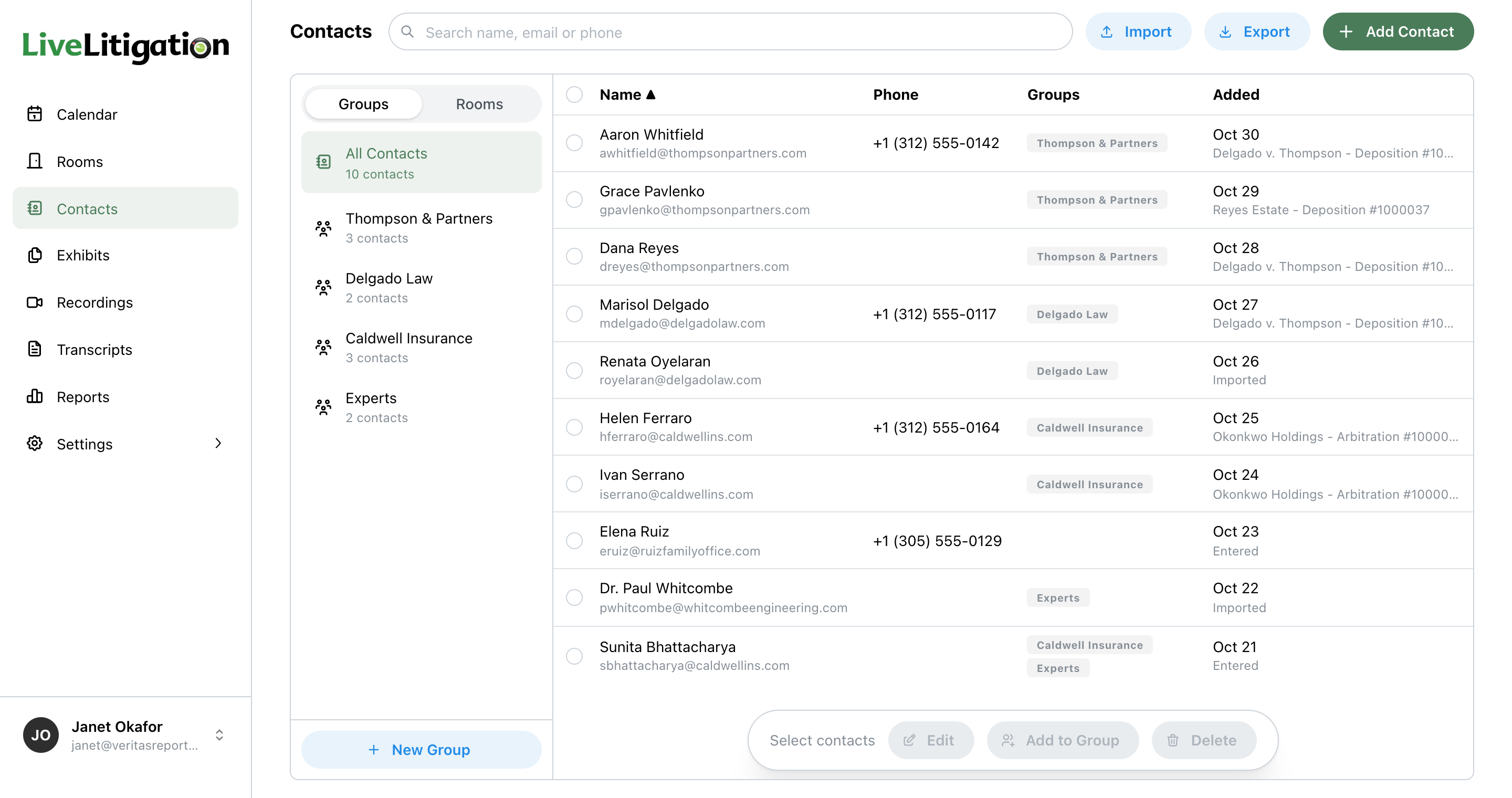
Each email address is one contact. A phone number is kept only when it can receive a text. Deleting a contact is permanent: editing a room later does not bring them back.
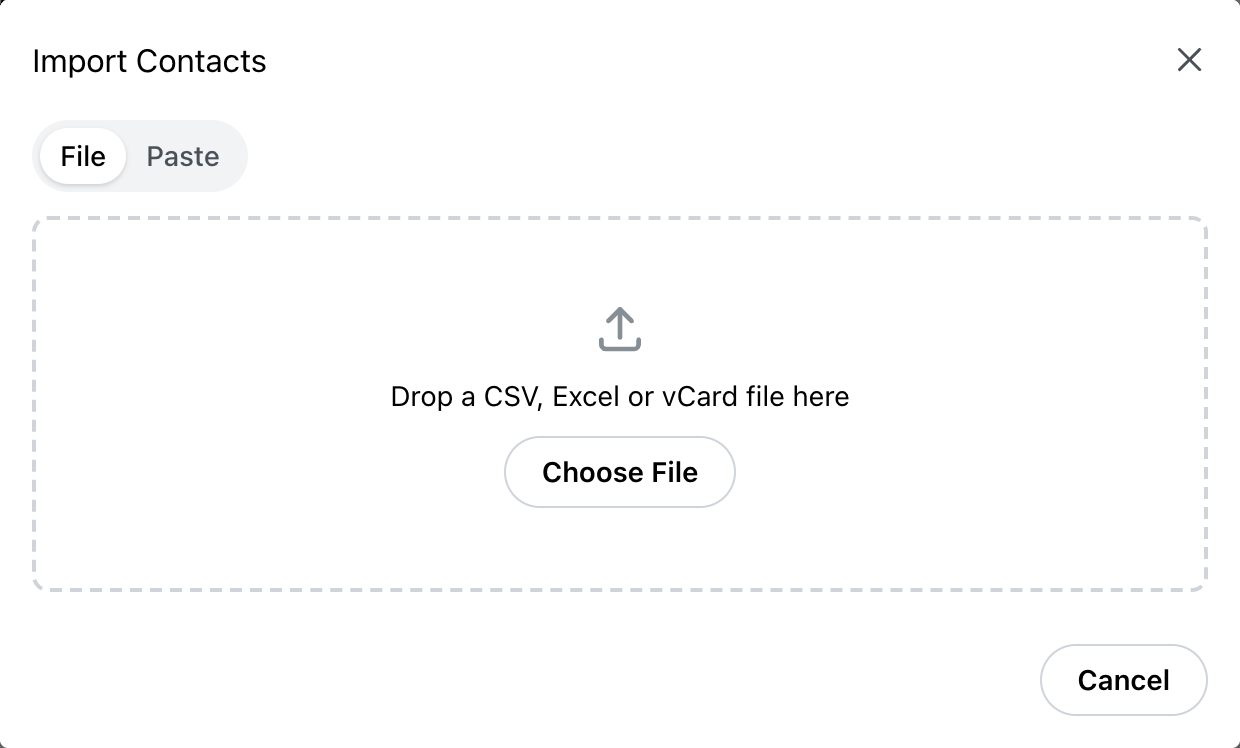
Click Import. Under File, drop a CSV, Excel or vCard (.vcf) file on the window; under Paste, paste rows from a spreadsheet, vCards, or addresses from an email. Exports from iPhone and Mac Contacts, Google Contacts and Outlook work as they are, and a vCard's categories become groups. The columns are matched for you, and you can change which column is the Name, Email, Phone or Groups. Choose Add to Group to put everyone in the file in a group.
Before anything is saved, each row shows what will happen to it: New, Fills blanks (already in Contacts, with a blank name or phone to fill), Already in Contacts, or Skipped with the reason, such as a row listed twice in the file.
Export saves the contacts you are looking at (your search, or the group or room you have open) as a CSV file.
The list on the left has two views, picked at its top.
To act on contacts, click their rows (or tick them) and use the bar at the bottom: Add to Group, Remove from Group, Edit or Delete.
For building the attendee list itself, see How to Create an eSuite Room.
Explore the platform