
The controls only a host has: changing roles and permissions during a proceeding, running the recording, and managing who is in the room.
This guide covers what a host can do from inside a room, as distinct from setting the room up beforehand. Most of it exists for one reason: a proceeding rarely starts with everyone correctly labelled, and a host needs to fix that without stopping the deposition.
For scheduling a room, building the attendee list, and choosing features and recording layouts before the event, see How to Create an eSuite Room.
Two kinds of people hold host controls:
The difference matters in exactly one place: only an account host can take the host role back off a co-host. That is deliberate, so a co-host cannot remove the person who promoted them.
Almost every control over a person lives in one place. The attendee list groups everyone by where they are, with the videographer feed under its own heading. Each row carries the person’s name, their team and role beneath it, and their microphone and camera state on the right. In a room that verifies attendees, the header also counts how many of the invited people have arrived.
When someone has no role yet, which is exactly what a guest who just joined looks like, their row shows + Role instead. That is the affordance to look for when a witness arrives as a guest.
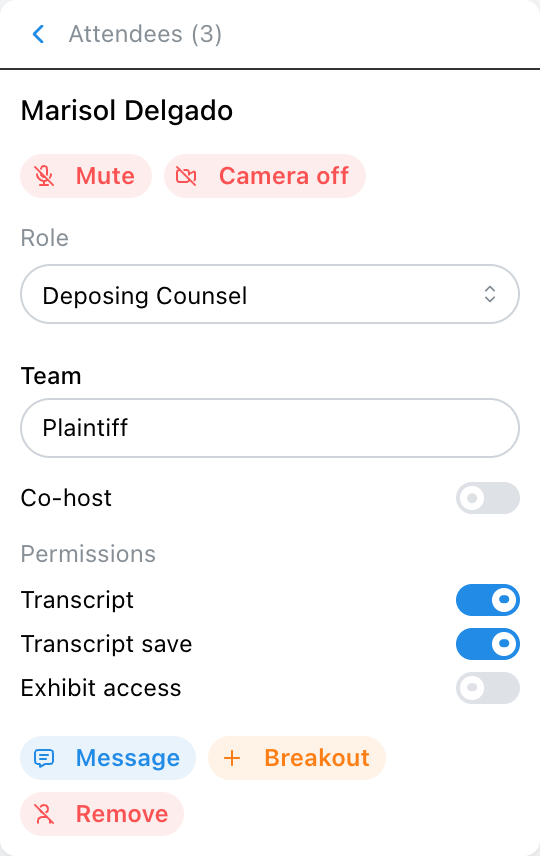
Click a row and that person’s card opens over the list. The header becomes a Back arrow, their name, and the time they joined.
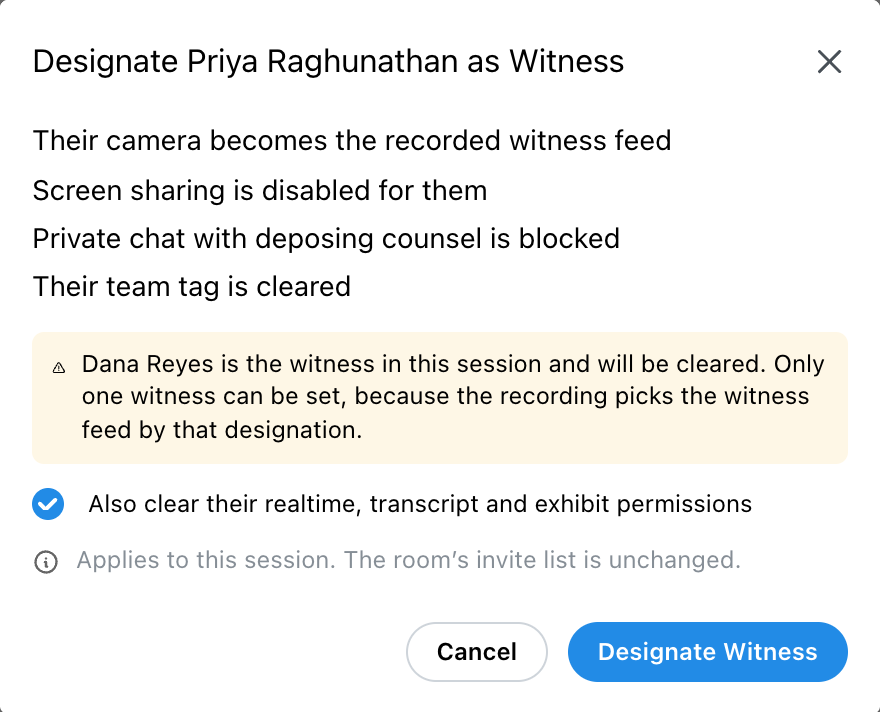
On the card, the Role dropdown sets what part this person plays: Witness, Videographer, Deposing Counsel, Opposing Counsel, Court Reporter, or no role at all. Choosing one opens a confirmation that spells out what the change actually does before you commit to it.
Designating a Witness, for example, states plainly:
The change takes effect immediately. The person is told what happened in their own terms, so a witness whose screen share button just disappeared knows why.
GOOD TO KNOW: Designating a witness clears the previous one
A room can only have one witness, because the recording picks the witness feed by that designation. If someone else already holds it, the confirmation names them and tells you they will be cleared. It does not block you, since blocking mid-proceeding would be worse, but it does mean the witness-focused recording follows whoever was designated last.
BEST PRACTICE: Designate the witness before you start recording
The witness camera is chosen by this designation, so a recording started before anyone is designated has no witness feed to follow. If a witness joins as a guest, promote them first, then start the recording.
The Team field on the card tags someone to a side, such as Defense or Plaintiff. Same-team attendees get a private team chat and can share exhibits with just their team. Your account’s saved team names appear as suggestions, and you can type a new one for an unusual party structure.
For a witness the field is replaced by a line reading Witnesses are never on a team. That is what preserves the separation between counsel and the witness: a witness on the Defense team would receive the Defense team chat.
Permissions holds the co-host switch and three switches controlling what an attendee can reach:
These take effect immediately and are the usual reason to open someone’s card. A guest who joins unlisted arrives with none of them, so granting transcript access is often the first thing a host does for arriving counsel.
Only the permissions the room actually has appear. A room with no transcript source does not show the transcript switches.
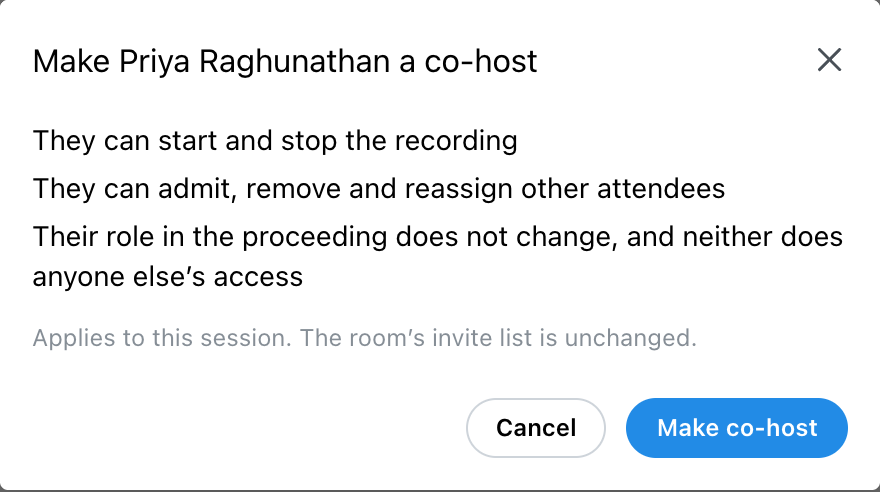
The Co-host switch, the first one under Permissions, hands over the host controls. The confirmation is explicit about what that means:
Co-host is separate from the proceeding role, so deposing counsel acting as host is perfectly ordinary and their role survives the promotion.
BEST PRACTICE: Promote a second host before you need one
Everything in this guide stops being available the moment the only host drops off the call. Promoting a co-host early, usually the court reporter or the videographer, means a dropped connection does not leave the room with nobody who can change a role or stop the recording.
The top of the card is a row of tiles: Mic, Cam, Message and Breakout. Mic and Cam act on that person straight away; the icon shows how they are right now and the tooltip says what a click will do, such as Unmute or Turn off their camera. They come first because they are the most-used controls in a live room.
Remove from room at the bottom of the card disconnects the person from the session. They are told a host removed them. Removal ends their current connection; it does not edit the room’s attendee list, so a verified attendee can verify and rejoin.
GOOD TO KNOW: Removing is not the same as revoking access
If someone must not be able to come back, remove them and then lock the room, or edit the room’s attendee list. On its own, Remove only ends the connection they currently have.
Open the room menu and choose Manage Recording. While something is running the entry reads Manage Recording (live) and is marked in red.
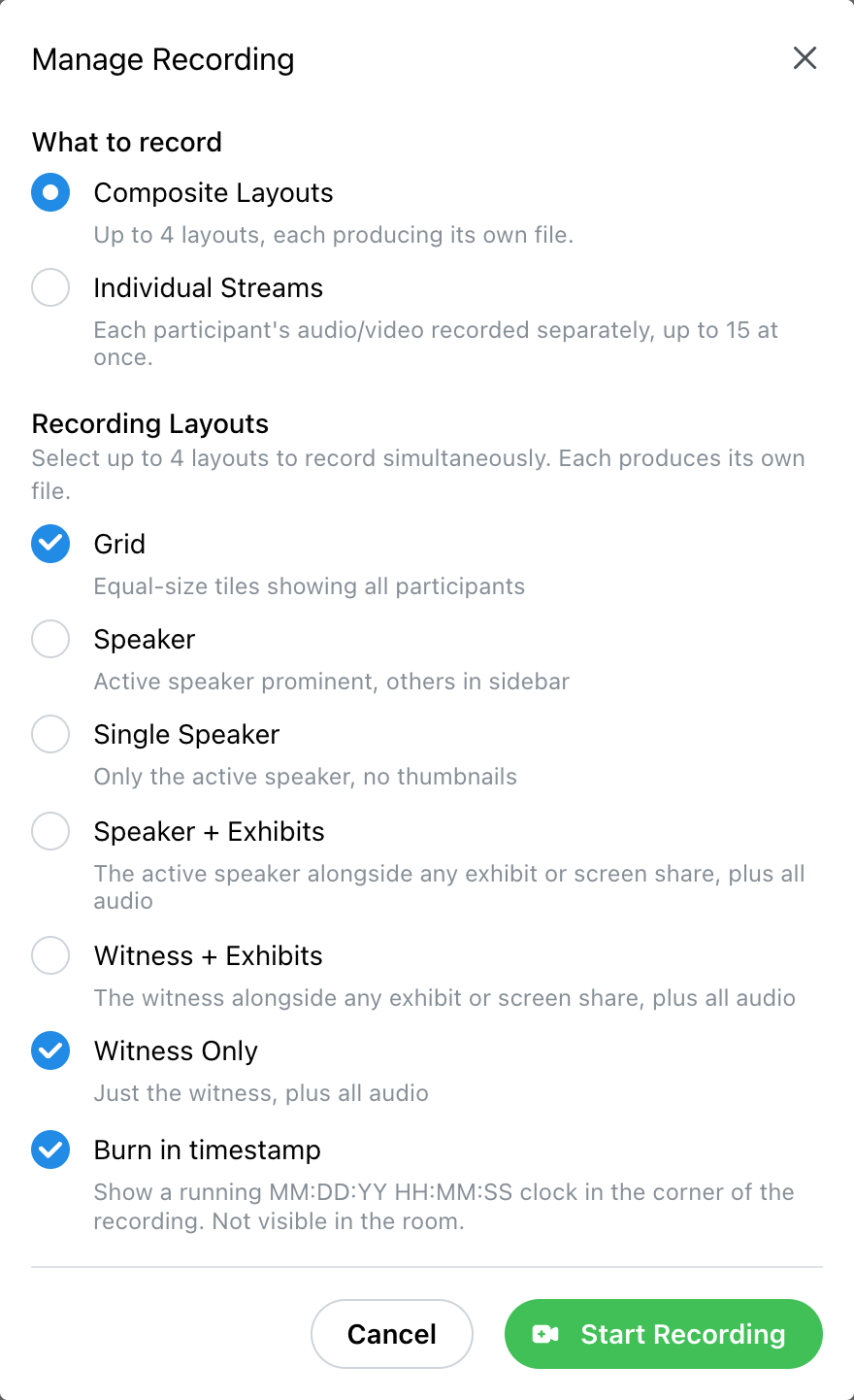
Before starting, the modal lets you confirm what this particular recording will capture: Composite Layouts or Individual Streams, which layouts to record, and whether to Burn in timestamp. These are the room’s settings, and changing them here applies to the recording you are about to start. Then press Start Recording.
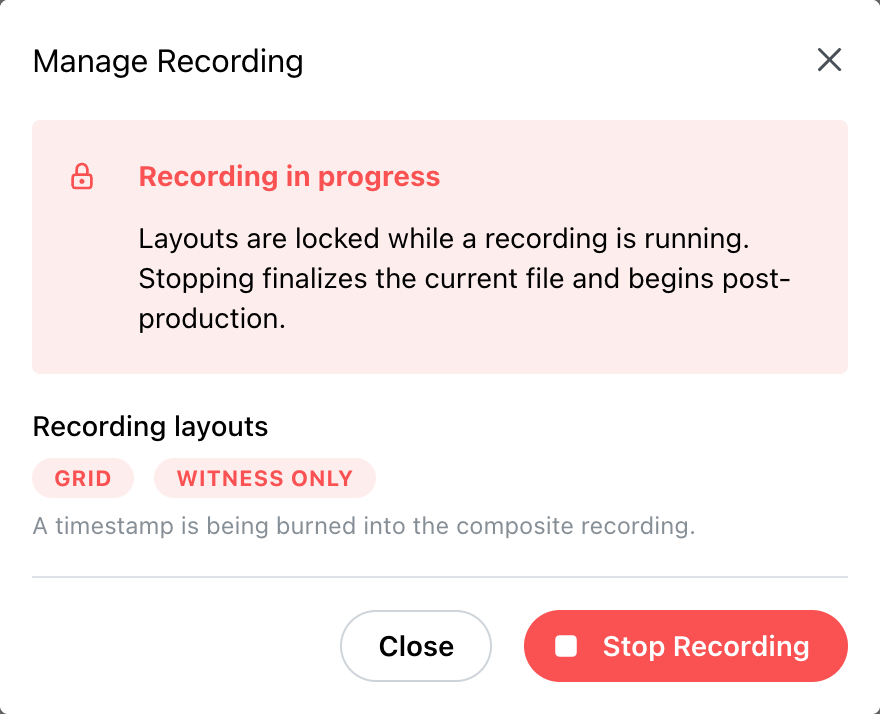
While a recording is running the modal shows which layouts are capturing, and notes that layouts are locked until it stops. Press Stop Recording to finalize the file and begin post-production.
BEST PRACTICE: Start and stop with the record
Starting when you go on the record and stopping when you go off it keeps breaks and off-record discussion out of the file entirely. Each on-record stretch produces its own recording, and afterwards you can select the parts in Recordings and choose Combine to join them into one file.
GOOD TO KNOW: Layouts cannot be changed mid-recording
Once a recording is running the layout selection is locked. If you started on the wrong layout, stop, change it, and start again. The two parts can be combined afterwards, so this costs you a seam rather than the recording.
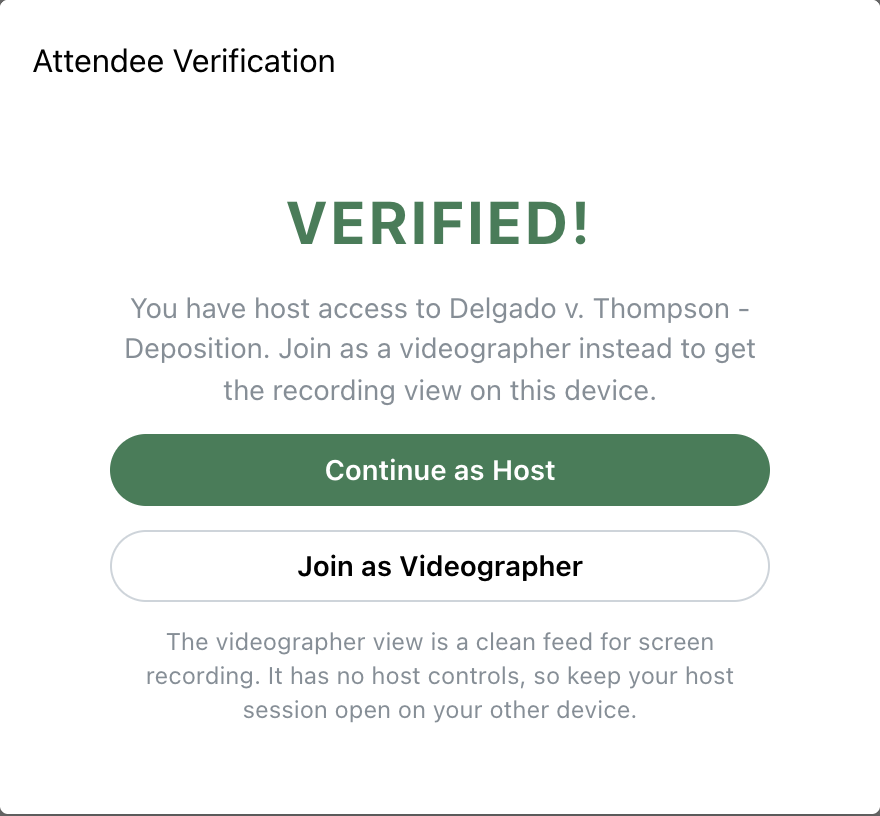
If you are hosting and also running the video, you do not need a second invitation under a second email address. Open the room link on another device and enter your code as usual. Because you hold host access, the VERIFIED! screen stops there and offers two buttons instead of carrying you into the room:
The videographer view is an edge-to-edge shot of the witness with no room interface over it, which is what your own screen-recording software should point at. It asks you to choose Witness Only or Witness + Exhibits first, and offers a Burn in timestamp option.
The two connections are independent. Choosing the videographer feed on the second device does nothing to your host session on the first, which keeps every control described here.
GOOD TO KNOW: The videographer seat holds no host controls
It publishes no camera or microphone and carries no host powers by design, so it cannot change a role, grant a permission, or start and stop the recording. Keep your host session open on the other device, because the videographer device cannot do any of it. Both connections appear on the attendee list under your name, one of them tagged Videographer.
When someone who cannot share on their own asks to, a prompt appears for the host reading “[Name] would like to share their screen” with Approve and Deny. It stays on screen for thirty seconds.
Verified attendees generally share without asking. The witness and the videographer cannot share at all, by design, and will not produce a request.
From the room menu, Lock Room stops anyone else from joining. The same entry reads Unlock Room once locked. Locking does not remove anyone already present.
BEST PRACTICE: Lock once everyone is in and on the record
It is the simplest way to guarantee nobody wanders in mid-testimony, and it is one click to undo when someone needs to rejoin after a dropped connection.
From an attendee’s card, Breakout starts a private side room with that person, and if breakouts already exist the card offers Add to [name] for each one. Counsel use these for a private word with their client without leaving the proceeding.
Deposing Counsel cannot take the witness into a breakout. That restriction is the point of the role and applies to hosts as well.
Leaving offers two different things. Leave disconnects you and leaves the room running for everyone else. Below it, a host also sees End Meeting for All, which disconnects every participant and ends the session.
GOOD TO KNOW: Stop the recording before you end the meeting
Ending the meeting for everyone is the last thing to do, not the first. Stop the recording yourself so you know the file was finalized cleanly, then end the session.
Several things are refused on purpose. Knowing them saves you hunting for a control that does not exist.
GOOD TO KNOW: In-room changes never edit the room itself
Everything here applies to the session in progress and to the record of it. None of it rewrites the room’s saved attendee list. For a multi-day matter, make the same corrections on the room afterwards, or day two starts exactly as day one did.
Explore the platform