
Step-by-step instructions for uploading, presenting, stamping, and marking exhibits during a LiveLitigation event.
Once inside a room, click Exhibits at the top left of the room header to open the Exhibits panel.
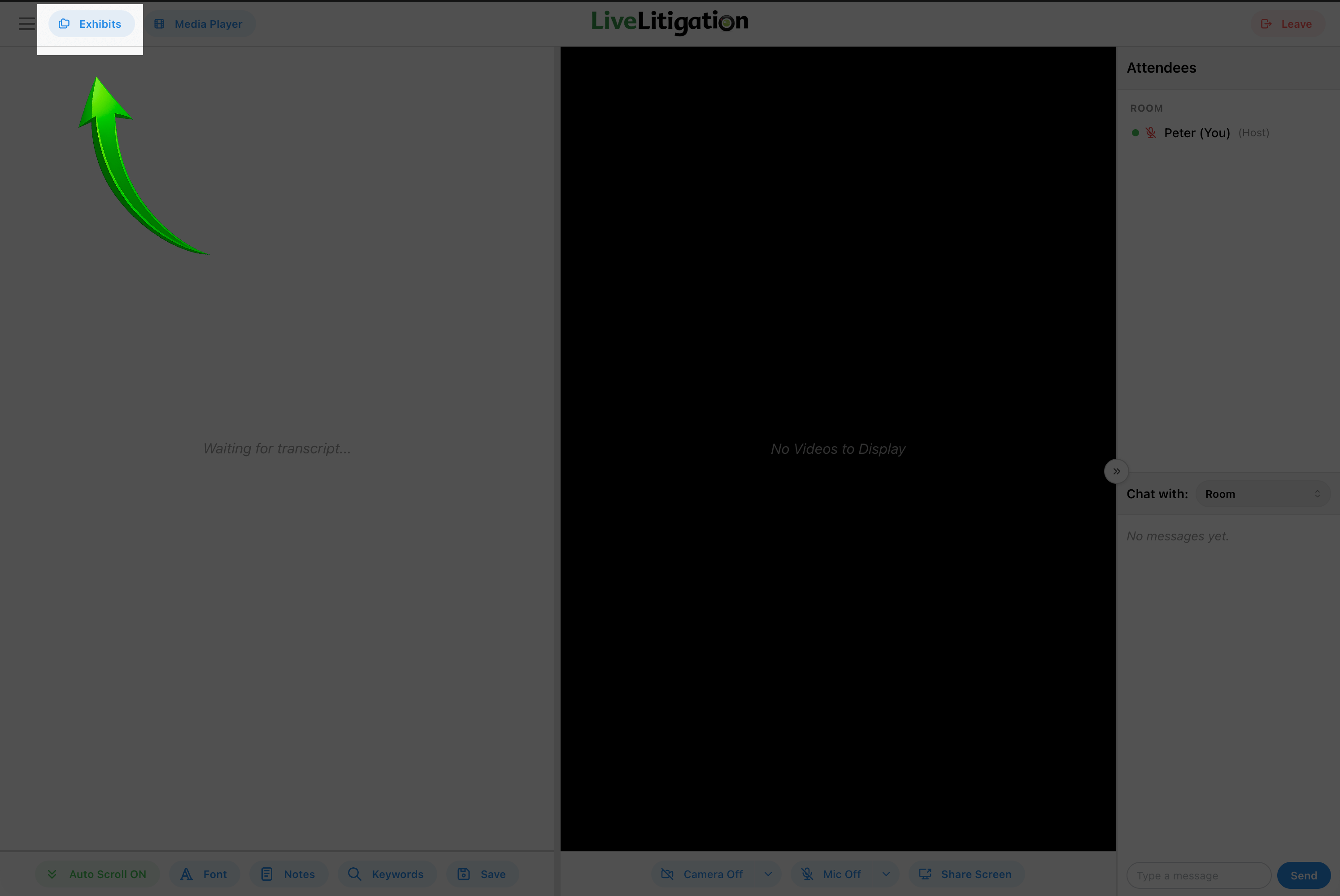
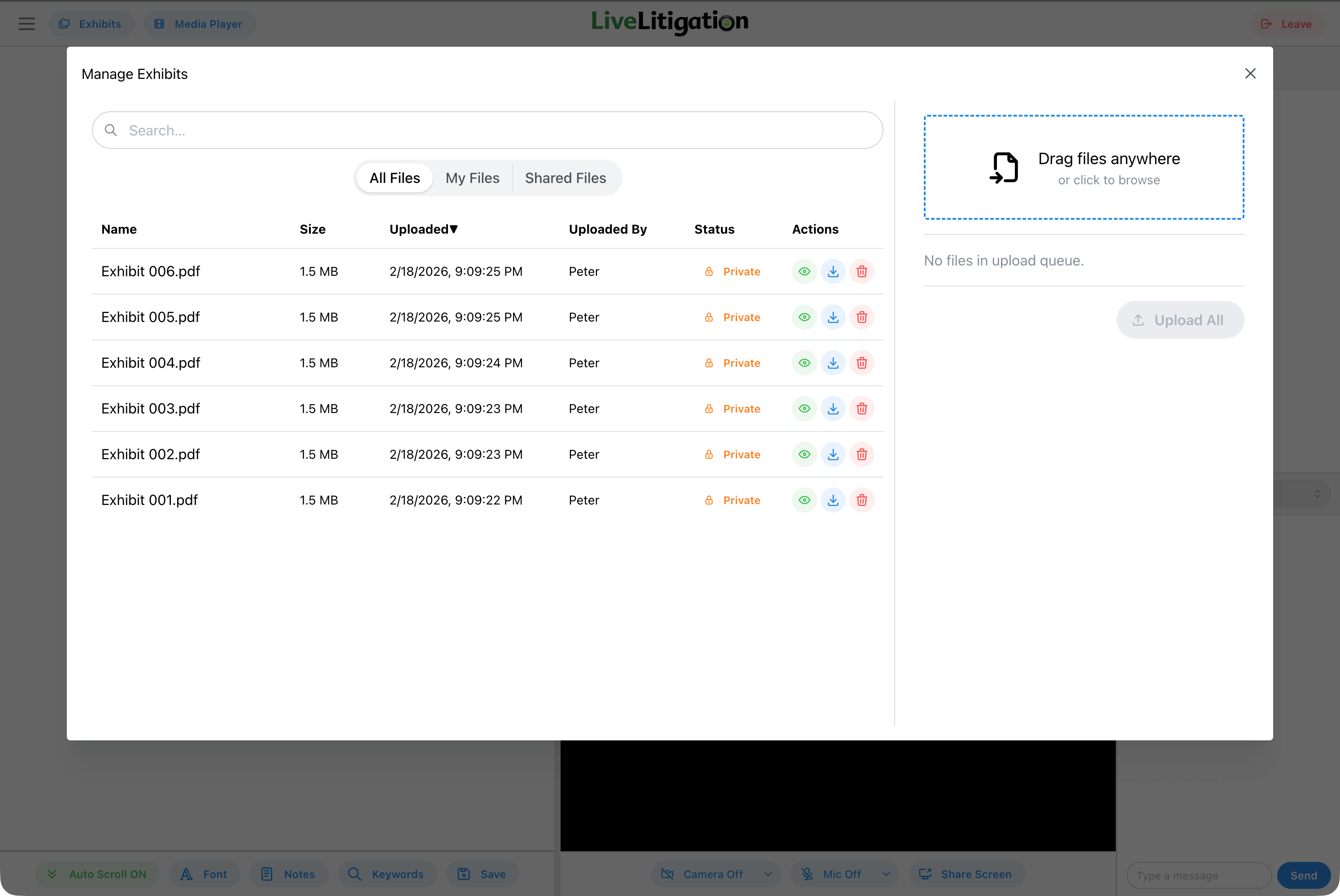
The Exhibits panel opens on the exhibit list. If nothing has been uploaded yet, or made public, it shows a drop area instead: drag files onto it, or use Choose files or Add from My files.
The panel is also where you organise them. You can put exhibits into folders, search the list, and use Download all to take everything away as a single zip file. Each exhibit shows whether it already has saved markup, and submitted copies are grouped under Submitted Exhibits.
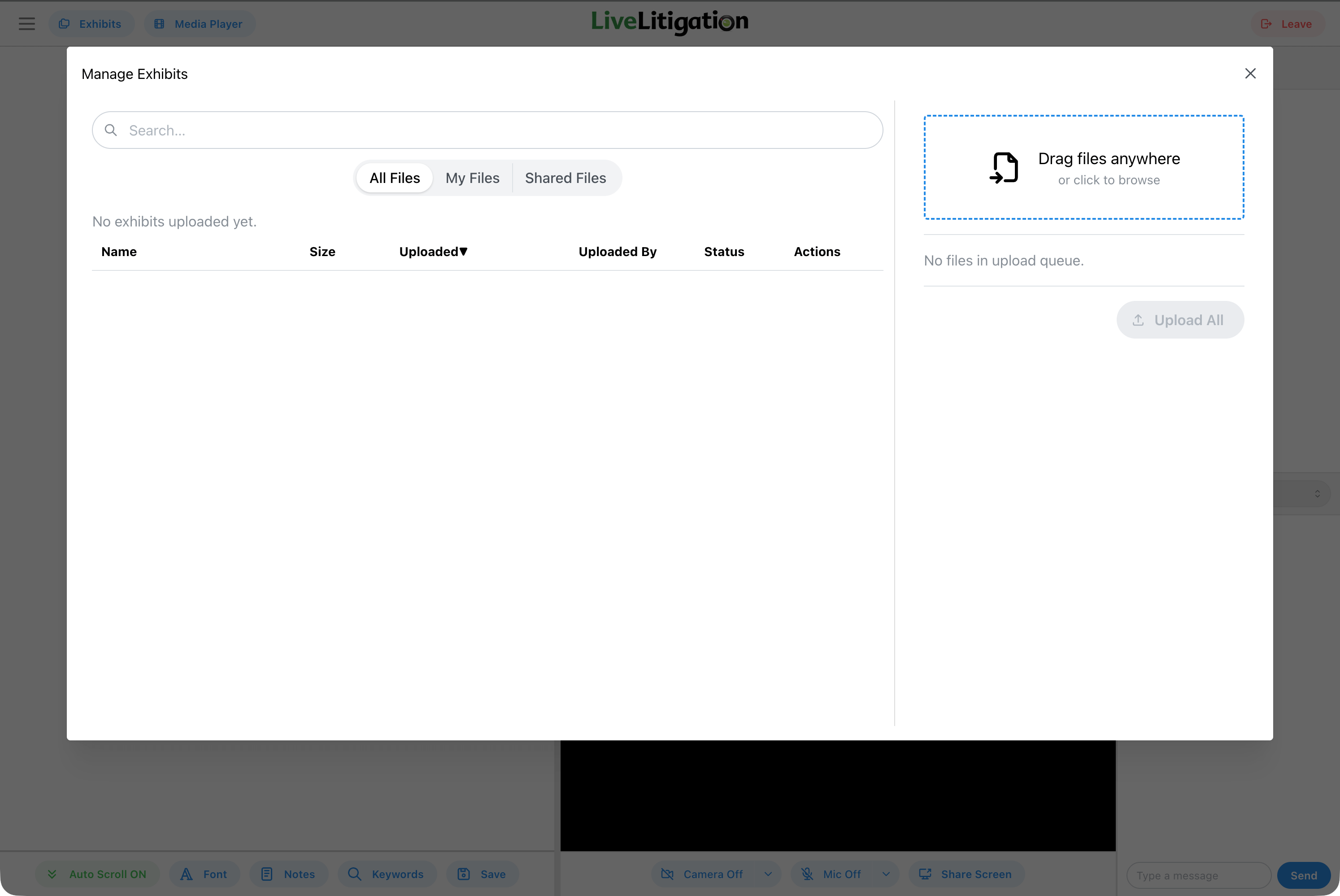
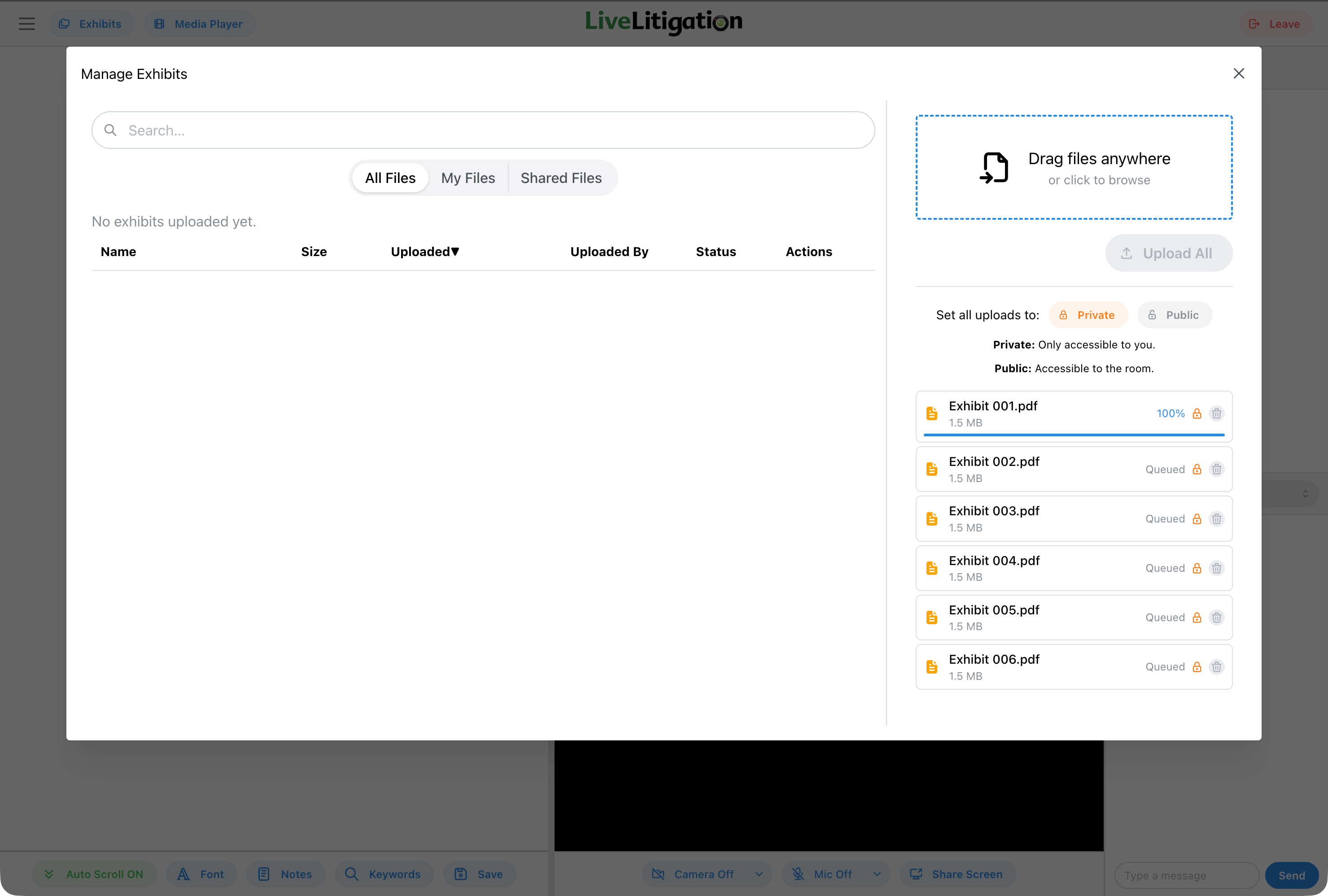
Click Upload, or drag files anywhere onto the panel. The files open in an upload window, where you choose a Folder and the Sharing for the batch, remove a file with its X or use Add more, then click the Upload button at the bottom to send them.
Once uploaded, your exhibits will appear in the exhibit list. Each exhibit shows its filename and status.
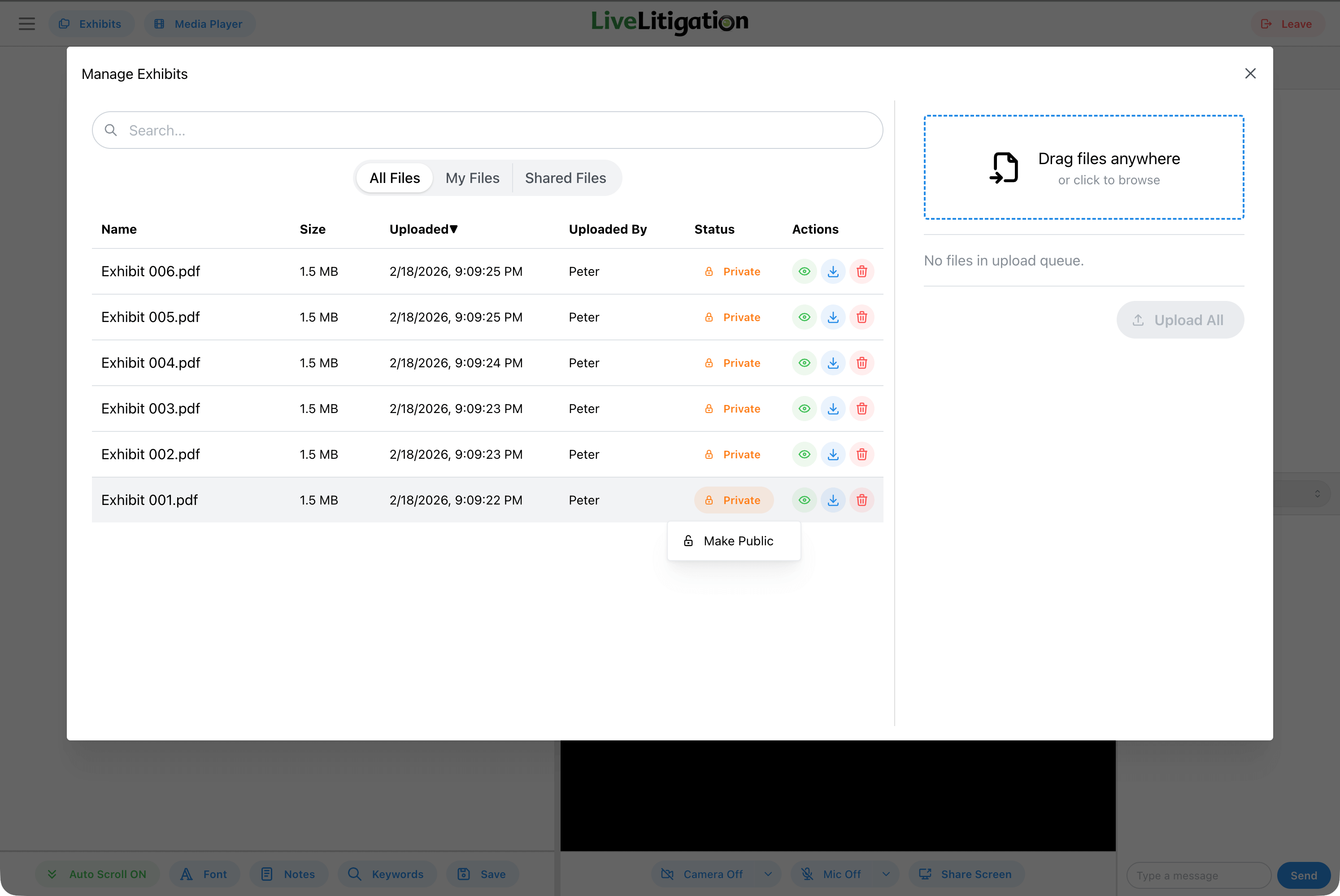
Adjust the visibility of each exhibit to control who can see it. There are three levels.
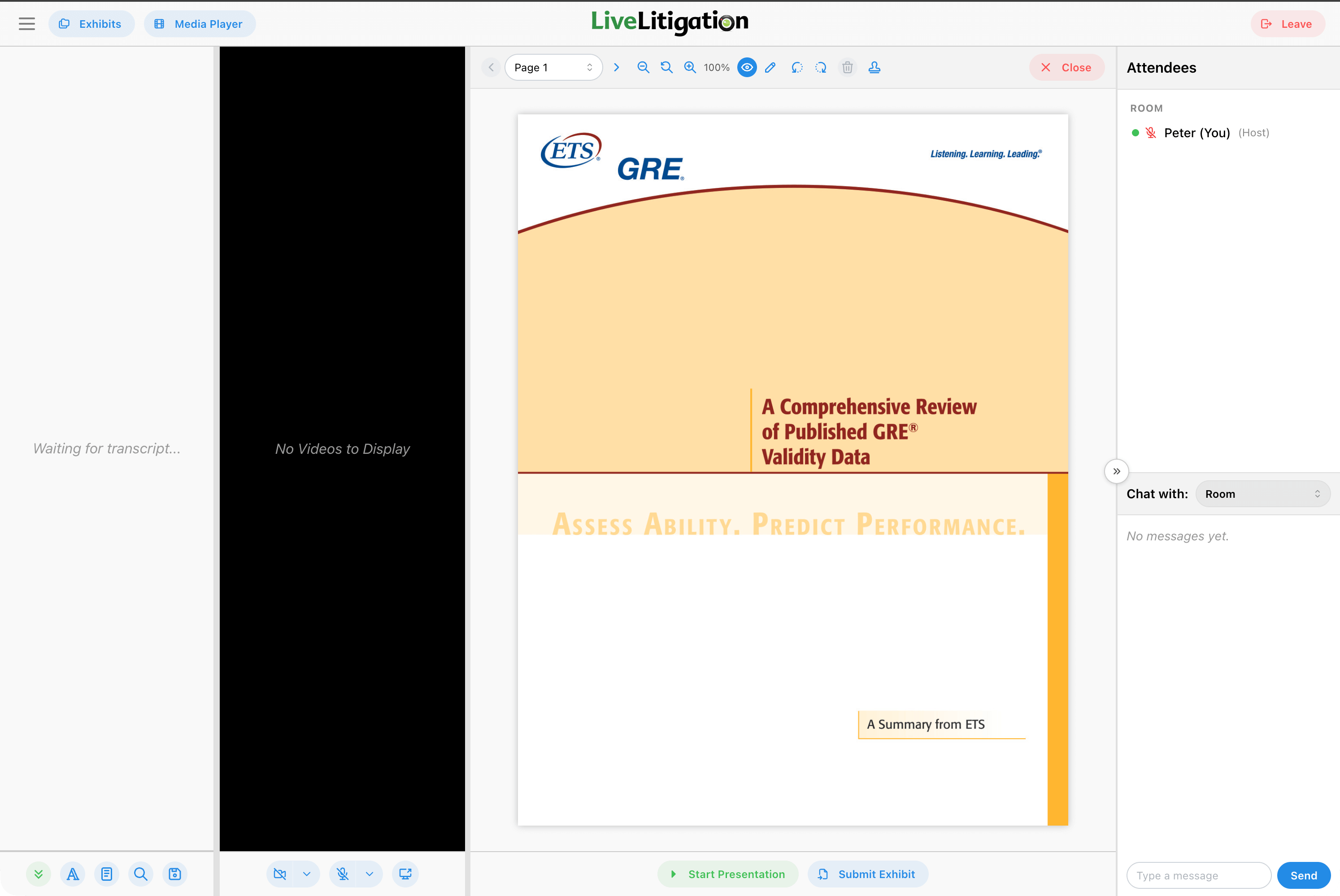
Click on an exhibit to open it in the document viewer. You can move through pages, zoom, and navigate the document.
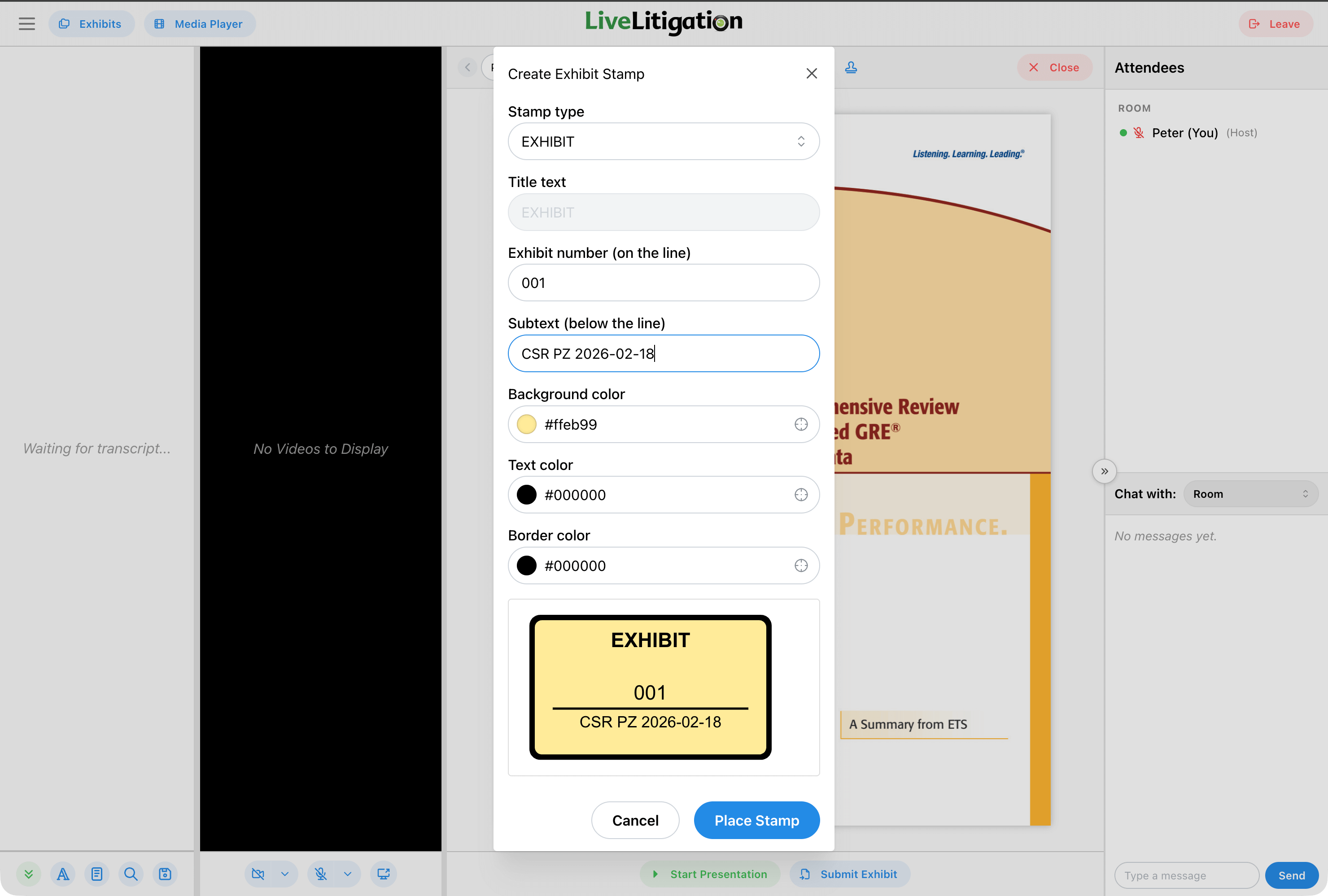
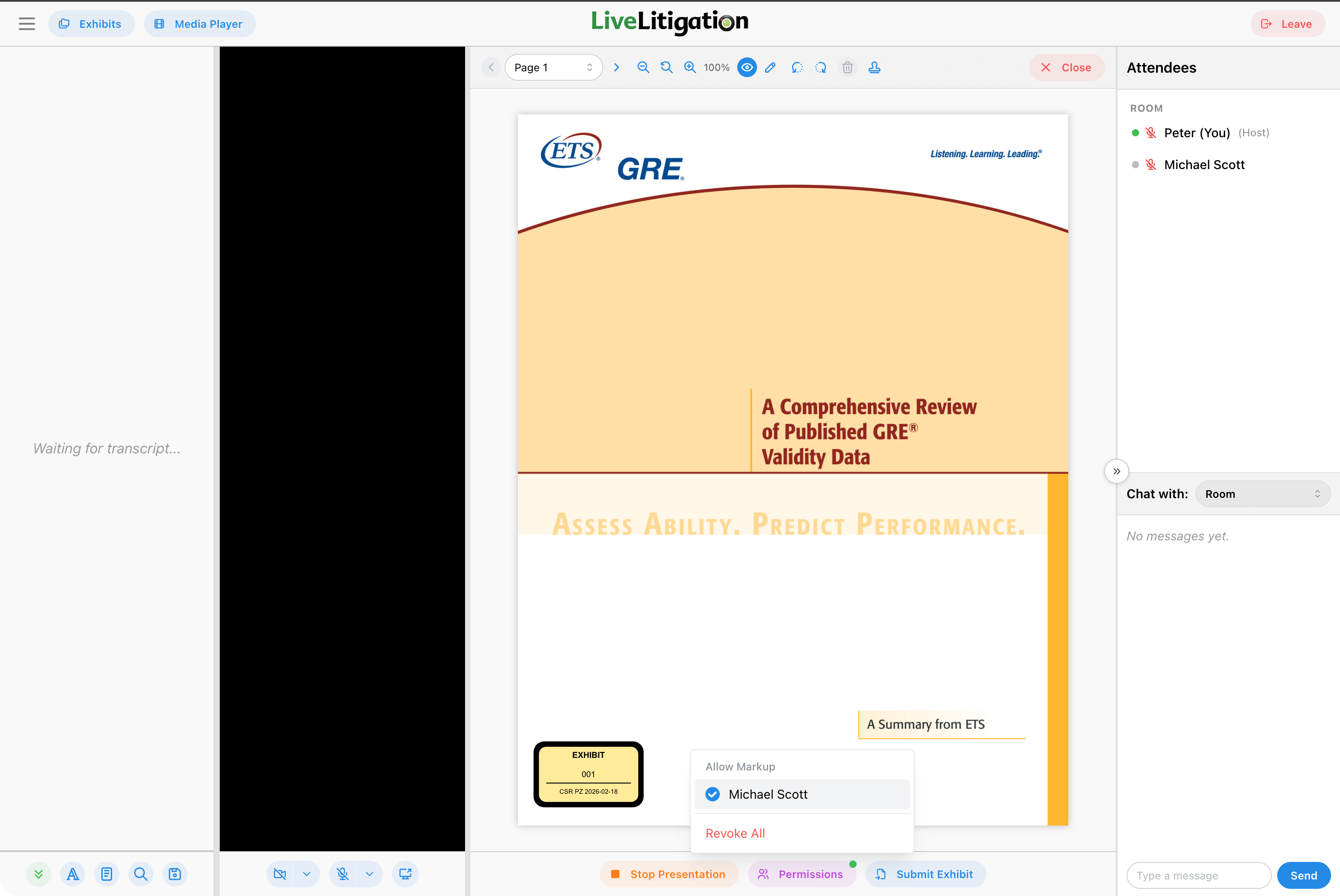
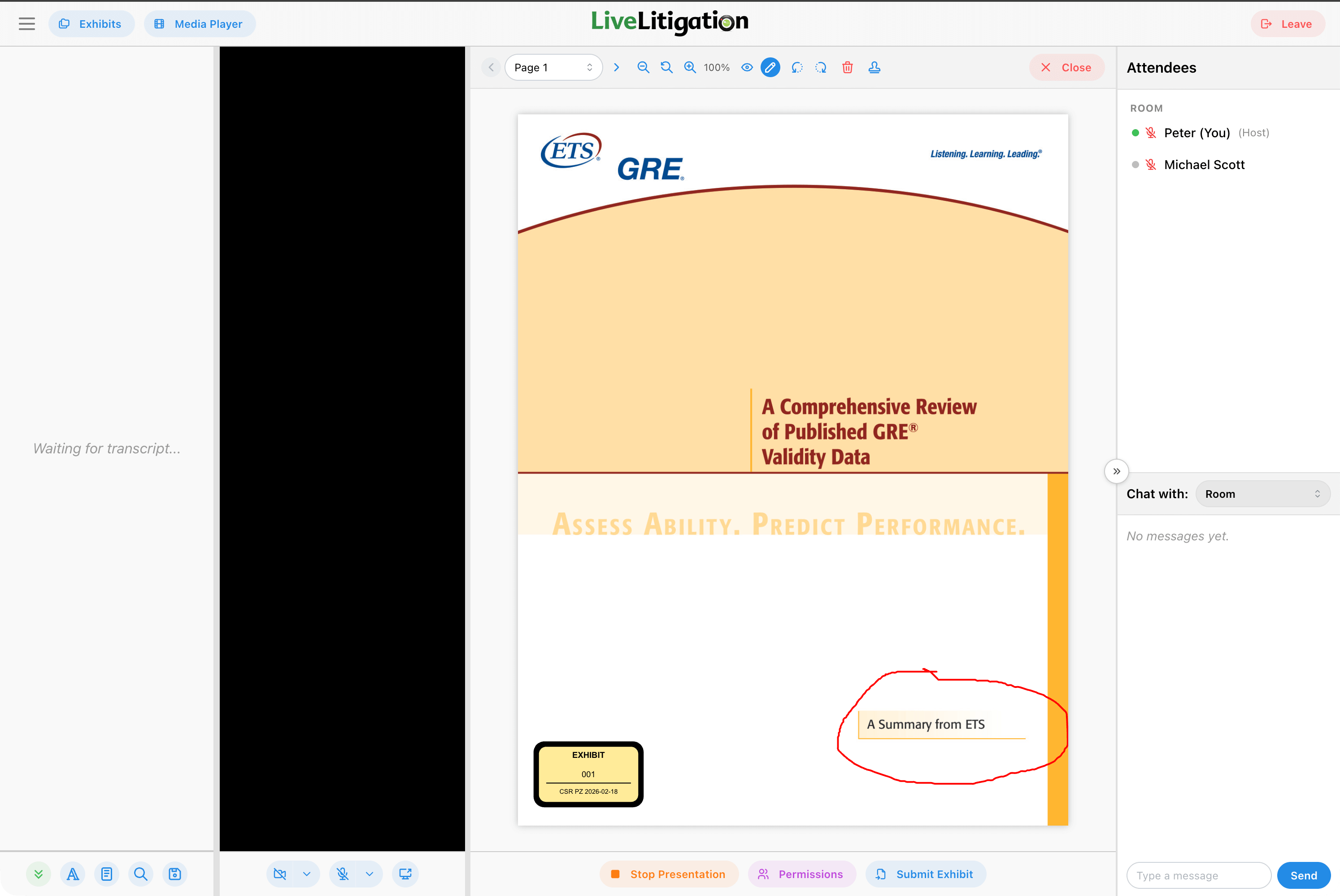
Use the Stamp feature to apply an official exhibit stamp to the document. This marks the exhibit with a label for the record.
Click Start Presentation to share the exhibit on screen for all participants. The exhibit will be displayed in the main viewing area for everyone in the room.
Use the markup tools to annotate an exhibit. You can draw directly on the document while it is being presented, and all participants see the markup in real time.
The toolbar always shows the same tools. When something is not available to you it is greyed out rather than hidden, so a tool you cannot use is not a sign that anything is broken. View only means you can see the markup but not add to it.
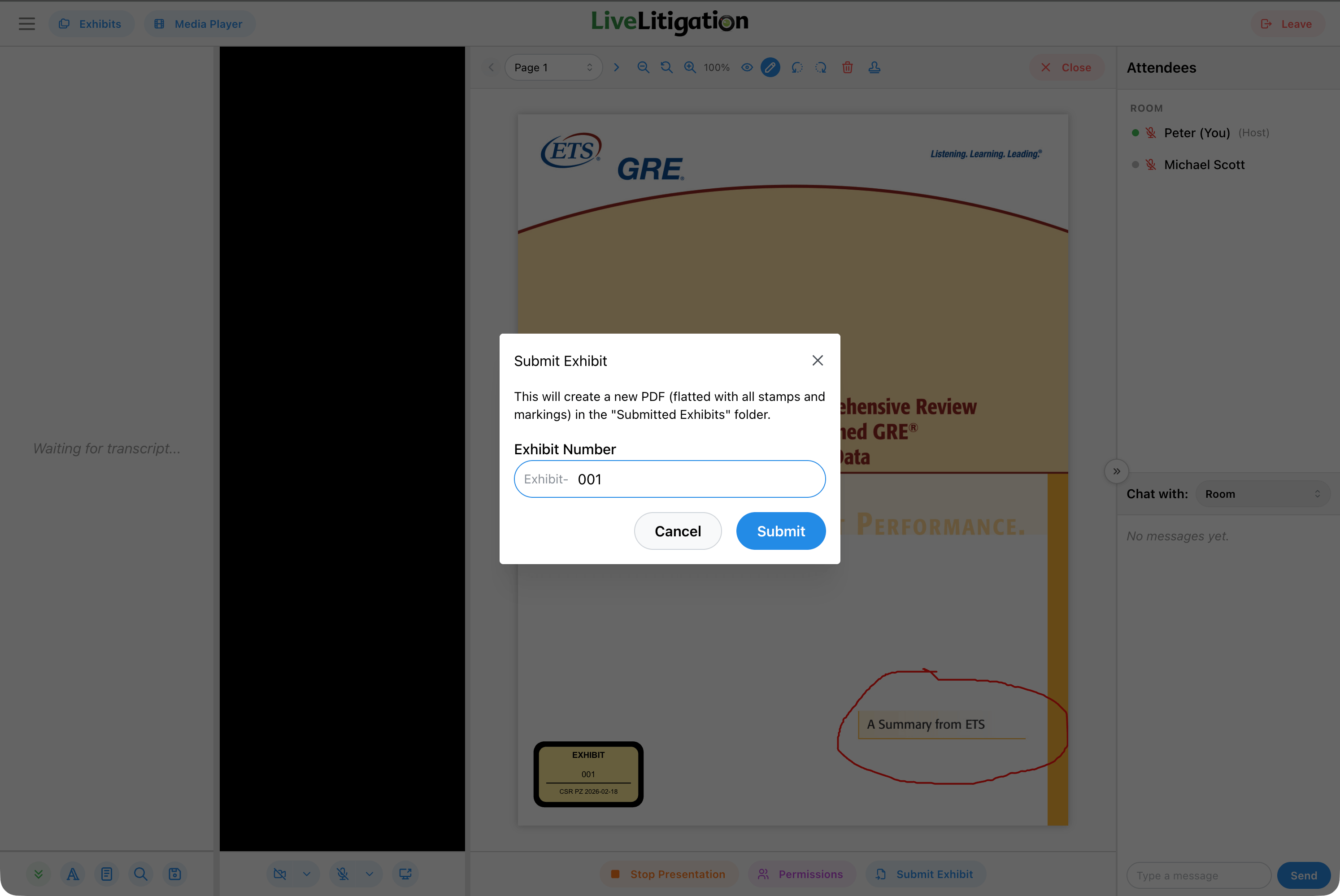
Click Submit create a new copy of the document with all stamps and annotations.
Explore the platform